Installation guides

Step-by-step IPTV installation guides

General instructions for setting up a player app with the subscription you hold from an authorized provider.

Menus vary by model and software version. Always follow your authorized provider’s instructions — these guides are a general reference.

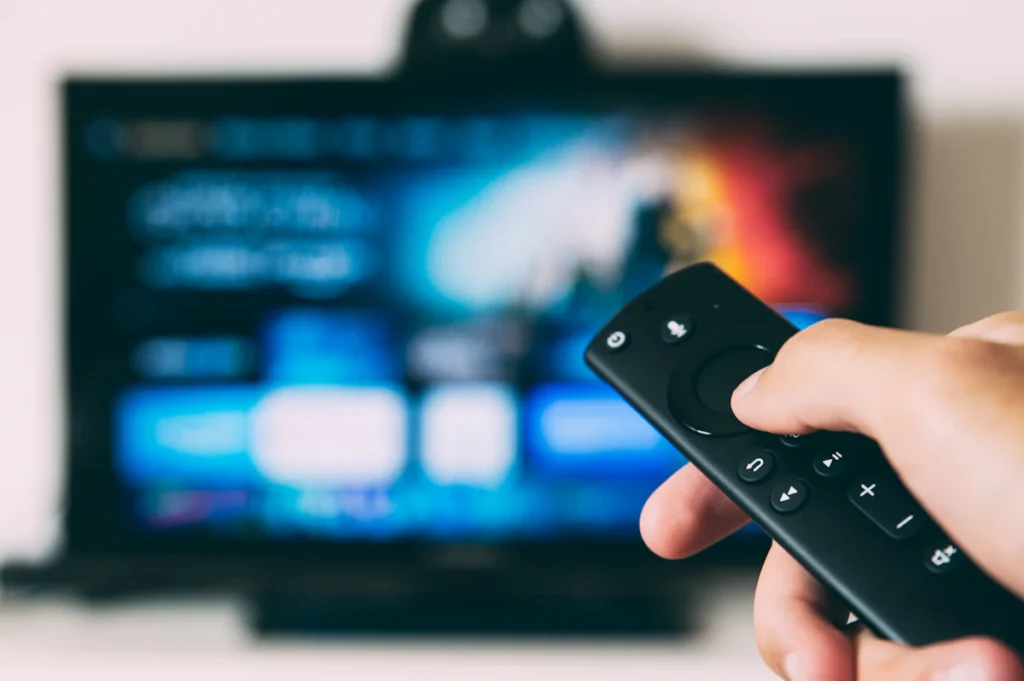
A hand holding a remote in front of a smart TV menu

Photo: Glenn Carstens-Peters on Unsplash

Samsung or LG TV

  1. Connect the TV to the internet and install system updates.
  2. Open the app store (Smart Hub or LG Content Store).
  3. Search for the player app your provider recommends and install it.
  4. Open the app and enter the sign-in details your provider gave you.
  5. Lower the picture quality in the app settings if playback stutters.

Android TV, Google TV & Fire TV

  1. Update the device (Settings › System).
  2. Open Google Play Store or Amazon Appstore.
  3. Install the player app your provider names.
  4. Sign in with your account or add the playlist you were given.
  5. Pin the app to the home screen for quick access.

iPhone, iPad & Apple TV

  1. Open the App Store and install the app your provider recommends.
  2. Allow local-network access if the app asks for it.
  3. Sign in with your subscription details.
  4. On a TV, use the Apple TV app or AirPlay if the app supports it.

Windows or macOS computer

  1. Use your provider’s web player or desktop app.
  2. Download only from the publisher’s official site or the Microsoft/Apple store.
  3. Sign in, then choose a picture quality that suits your connection.

Quick troubleshooting

Playback stutters

Restart your modem/router and the device, move closer to the router or use an Ethernet cable, then lower the picture quality.

The app won’t sign in

Check your sign-in details, the device’s date and time, and your subscription status with your provider.

Audio is out of sync

Toggle the audio mode on your TV or soundbar and restart the app.
A question before you start? Write to us.

Scroll to Top