Installation guides
Step-by-step IPTV installation guides
General instructions for setting up a player app with the subscription you hold from an authorized provider.
Menus vary by model and software version. Always follow your authorized provider’s instructions — these guides are a general reference.
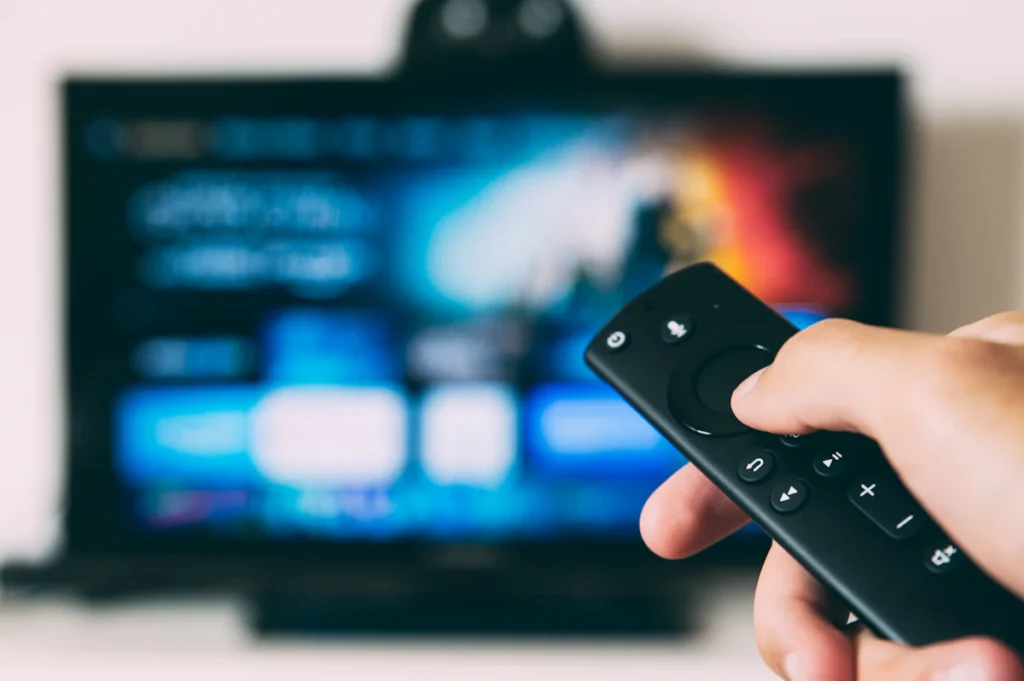
Photo: Glenn Carstens-Peters on Unsplash
Samsung or LG TV
- Connect the TV to the internet and install system updates.
- Open the app store (Smart Hub or LG Content Store).
- Search for the player app your provider recommends and install it.
- Open the app and enter the sign-in details your provider gave you.
- Lower the picture quality in the app settings if playback stutters.
Android TV, Google TV & Fire TV
- Update the device (Settings › System).
- Open Google Play Store or Amazon Appstore.
- Install the player app your provider names.
- Sign in with your account or add the playlist you were given.
- Pin the app to the home screen for quick access.
iPhone, iPad & Apple TV
- Open the App Store and install the app your provider recommends.
- Allow local-network access if the app asks for it.
- Sign in with your subscription details.
- On a TV, use the Apple TV app or AirPlay if the app supports it.
Windows or macOS computer
- Use your provider’s web player or desktop app.
- Download only from the publisher’s official site or the Microsoft/Apple store.
- Sign in, then choose a picture quality that suits your connection.
Quick troubleshooting
Playback stutters
Restart your modem/router and the device, move closer to the router or use an Ethernet cable, then lower the picture quality.
The app won’t sign in
Check your sign-in details, the device’s date and time, and your subscription status with your provider.
Audio is out of sync
Toggle the audio mode on your TV or soundbar and restart the app.